
Quick Answer
How do I reconnect my WhatsApp number to Weddingkart?
Open Your WhatsApp numbers in the Weddingkart menu, click the number showing Disconnected, then Reconnect this number. The one thing that matters is picking the same Facebook business, the same WhatsApp Business account and the same number you used the first time - creating new ones leaves the number disconnected. Only the person who first connected it can do this, and it takes a few minutes.
Last updated:
How to reconnect your WhatsApp number to Weddingkart
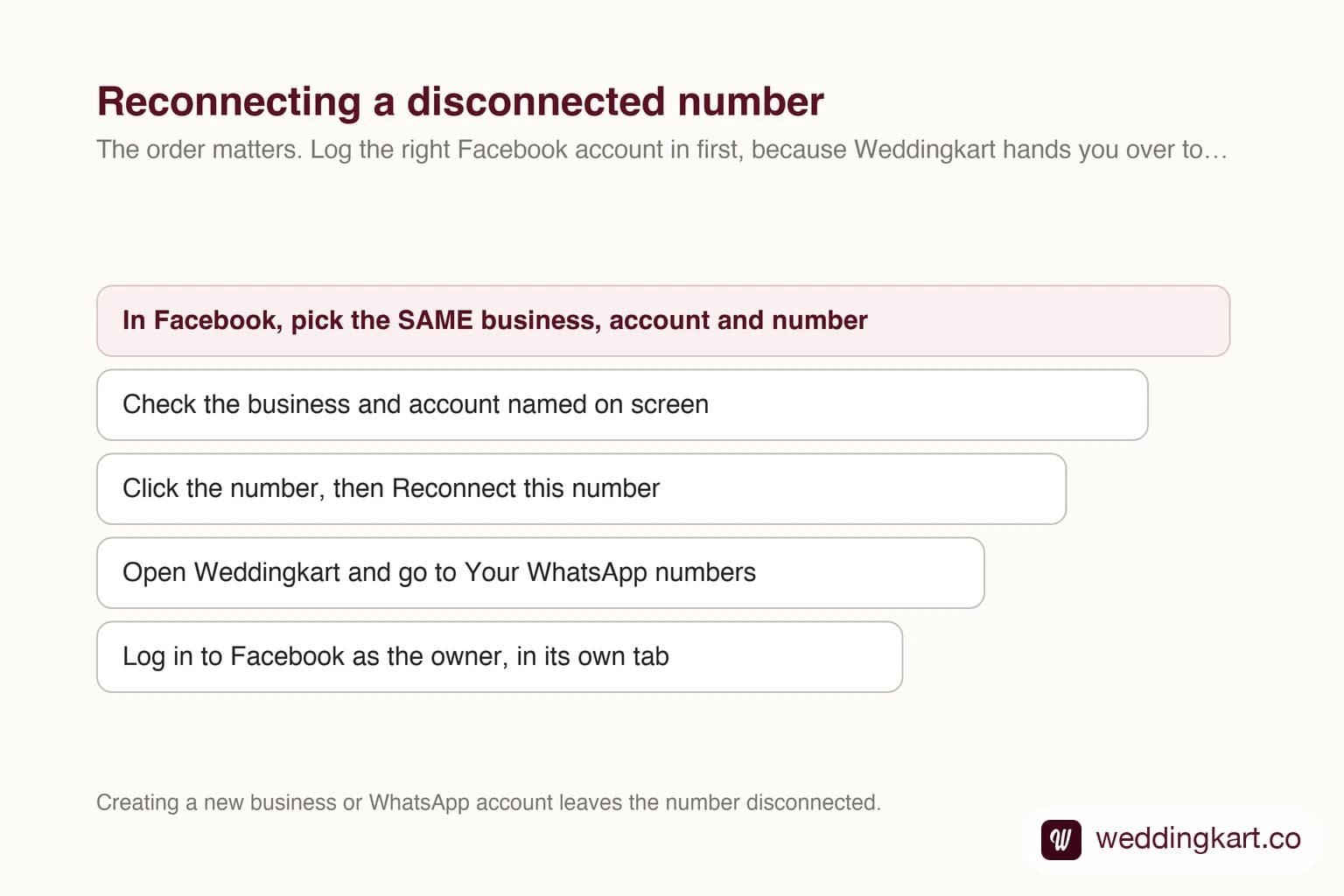
If you connected your own WhatsApp Business number to Weddingkart and it now shows Disconnected, Weddingkart cannot send messages from it until you reconnect. It takes a few minutes, and almost all of the difficulty is in one place: choosing the same Facebook business and WhatsApp account you used the first time.
Why numbers disconnect
Usually because the number was unlinked in the WhatsApp Business app, or because that app was not opened for about two weeks. Opening WhatsApp Business on the phone that holds the number every so often is enough to prevent it.
Before you start
- Only the person who first connected the number can reconnect it. Use their logins for both Facebook and Weddingkart.
- Keep the phone with this number close by, with the WhatsApp Business app open.
- Use a laptop or desktop with Google Chrome.
Set up two tabs in Chrome
This sounds fussy and it is the step that saves you. When Weddingkart hands you over to Facebook, Facebook uses whichever account is already signed in.
- Open Google Chrome.
- Tab 1 — Facebook. Go to facebook.com and log in with the owner’s Facebook account. It must be an admin of the business the number was connected to. If a different account is already logged in, log out first, or Facebook will connect the number to the wrong business.
- Tab 2 — Weddingkart. Open a new tab, go to app.weddingkart.co and log in with the Weddingkart phone number of the person who first connected the WhatsApp number.
- Keep both tabs open.
Reconnect in Weddingkart
- Open the menu.
- Click Your WhatsApp numbers. A disconnected number shows a red Disconnected label.
- Click that number to open Number details. You will see “This number is disconnected”.
- Click Reconnect this number.
- Read the Before you reconnect screen. It shows the business this number was connected to, the WhatsApp Business account, and the Facebook login to use. Check that the Facebook account in Tab 1 matches. We also send these details to your WhatsApp and email, so you can check them on the phone.
- Click Continue to Facebook.
In the Facebook window
- If Facebook asks you to log in, use the same owner account as Tab 1.
- When asked for a business portfolio, pick the same business as before. Do not create a new one.
- When asked for a WhatsApp Business account, pick the same account as before.
- Choose the same number.
- If Facebook asks you to confirm in the WhatsApp Business app, do it on your phone.
- Finish the Facebook steps without closing the window. You will come back to Weddingkart.
Check it worked
Back in Weddingkart, open Your WhatsApp numbers again. The number should no longer say Disconnected. If it has not updated, refresh the page.
What not to do
- Do not create a new business portfolio or a new WhatsApp Business account. If you do, the number stays disconnected, because Facebook has attached it to something Weddingkart is not linked to. This is the most common way a reconnect goes wrong.
- Do not log in to Facebook with a personal account that has no access to that business.
- Do not delete the number in WhatsApp Manager, and do not uninstall the WhatsApp Business app.
- If something fails, click Reconnect this number again. Do not use Connect another number — that starts a fresh connection instead of restoring the one you have.
Still showing Disconnected?
Get in touch and tell us which number you tried to reconnect, and we will check it from our side. If you are still deciding whether to use your own number at all, the full guide to bringing your own number covers what changes for your guests.
Tools referenced in this post
Try Weddingkart for your wedding
Guest lists, WhatsApp invites, RSVPs, countdowns and more - the AI layer for Indian weddings.
Related reading
Frequently Asked Questions
Why did my WhatsApp number disconnect from Weddingkart?
Usually because the number was unlinked inside the WhatsApp Business app, or that app was not opened for around two weeks. Opening WhatsApp Business on the phone holding the number every so often is enough to prevent it.
Can someone else on my team reconnect the number?
No. Only the person who originally connected it can. The reconnect uses their Facebook account, which has to be an admin of the business the number sits under, and their Weddingkart login.
What happens if I create a new business portfolio by mistake?
The number stays disconnected. Facebook will have attached it to a business that Weddingkart is not linked to. Start the reconnect again and pick the existing business, WhatsApp Business account and number rather than creating new ones.
Do I need my phone during the reconnect?
Keep it close by with the WhatsApp Business app open. Facebook sometimes asks you to confirm the number in the app before it will finish.
Can I do this on my phone instead of a laptop?
Use a laptop or desktop with Google Chrome. The flow moves between a Weddingkart tab and a Facebook window, which is awkward on a phone and easy to get wrong.
Will my guests, groups and messages still be there after reconnecting?
Yes. Reconnecting restores the ability to send from your number. It does not touch your guest list, your groups or anything you have already sent.
Was this article helpful?
Share
By Weddingkart TeamLast updated